Jun 27, 2019
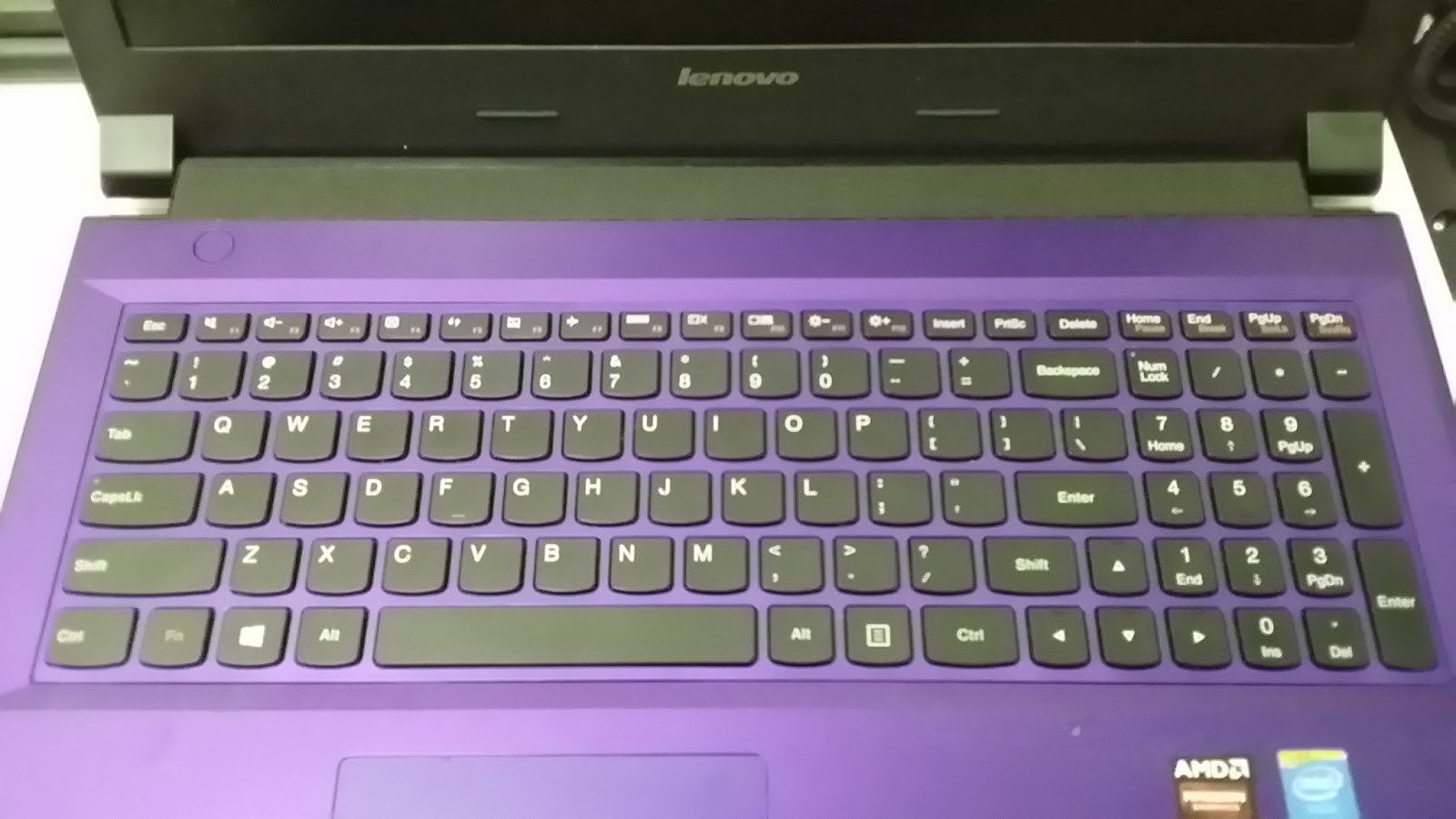
Notebook : Lenovo IdeaPad 305-15IBD [MT : 80NJ] (Disassembly)
Another posting for disassembly of a Lenovo notebook, the access to the RAM and HDD upgrade is very simple but to service the CPU's fan or refreshing the thermal compound required further steps as below :-
1. Remove the easy access cover, screws position as highlighted with arrow.
2. After removed, it will reveals the RAM slots and the HDD. Even access to the CMOS battery and the Wireless card is visible.
At this stage you can easily upgrade the RAM or the HDD but if you wanted further access such as to the CPU then proceed to step #3 below.
3. Remove those screws as per highlighted in arrow below.
4. Turn over to remove the keyboard panel.
5. Carefully and slowly peel the keyboard panel to reveal the bezel. Becareful of the keyboard's ribbon cable as usual.
As this unit was serviced before, thus I did noticed some missing screws which was supposed to be there but aren't. As such I was unable to determined the actual screws location for this bezel.
6. Now slowly and carefully remove the keyboard's bezel for the mainboard access.
7. Next is to disconnect those ribbon cables as circled in red and remove the screws as per arrows shown below.
8. Once you have done that, slowly flip over the mainboard to access the CPU's heatsink and fan, there you can proceed to refresh the thermal compound and clean the heatsink and fan.
This model is very easy and have simple access, you just need to be very meticulous in looking for the screws as its very obvious and noticeable.
!!! HAPPY COMPUTING !!!
Jun 18, 2019
Windows 10 : Enabled Edition Selection
Have you ever encountered OEM computers that have the "Digital Key" embedded into the BIOS/UEFI ? Now days modern computers whether desktops or laptops is running on UEFI and have the Windows License Key embedded into it.
But this license is either OEM or the pre-specified Edition (eg. Home Edition), this is good relatively to End Users but for Corporate Users that have their own licensing (eg, MAK/VLK) then it will be a headache. This is because the Windows 10 will automatically detect the OEM version at startup (even though you install from scratch) and automatically pre-select the appropriate Edition for you. But you wanted to use your own Corporate License Key and thus causes headaches.
There is a simple workaround on this, just follow these steps below :-
1. Download the Windows 10 ISO file, any architecture will do (eg. 32-bit/64-bit). You can use the Windows Media Creation Tool to download. You can also follow this steps on how to download and save it as an ISO file, link here.
2. Once downloaded, use any ISO browser/maker (I'm using MagicISO but any tools will do). Browse to "/sources" folder and look for a file named "ei.cfg", copy the file into your local folder (eg. Documents).
Note : If you are unable to locate the file in the ISO, no worry..... just create the file, ensuring the extension is correct will suffice.
3. Edit the "ei.cfg" file using Notepad. You may see the contents something similar as below.
4. Modify the contents as below, depending on your license type it may varies. Since our license is "Volume License" thus we need to enabled it.
5. Save the file then copy and paste it back to "/sources" folder and overwrite it. Now save the ISO file, next is your choice of either creating a bootable USB drive or burn the ISO into a DVD disc.
6. You may also want to have read on this in Microsoft Website for a better understanding.
!!! HAPPY COMPUTING !!!
But this license is either OEM or the pre-specified Edition (eg. Home Edition), this is good relatively to End Users but for Corporate Users that have their own licensing (eg, MAK/VLK) then it will be a headache. This is because the Windows 10 will automatically detect the OEM version at startup (even though you install from scratch) and automatically pre-select the appropriate Edition for you. But you wanted to use your own Corporate License Key and thus causes headaches.
There is a simple workaround on this, just follow these steps below :-
1. Download the Windows 10 ISO file, any architecture will do (eg. 32-bit/64-bit). You can use the Windows Media Creation Tool to download. You can also follow this steps on how to download and save it as an ISO file, link here.
2. Once downloaded, use any ISO browser/maker (I'm using MagicISO but any tools will do). Browse to "/sources" folder and look for a file named "ei.cfg", copy the file into your local folder (eg. Documents).
Note : If you are unable to locate the file in the ISO, no worry..... just create the file, ensuring the extension is correct will suffice.
3. Edit the "ei.cfg" file using Notepad. You may see the contents something similar as below.
4. Modify the contents as below, depending on your license type it may varies. Since our license is "Volume License" thus we need to enabled it.
5. Save the file then copy and paste it back to "/sources" folder and overwrite it. Now save the ISO file, next is your choice of either creating a bootable USB drive or burn the ISO into a DVD disc.
6. You may also want to have read on this in Microsoft Website for a better understanding.
!!! HAPPY COMPUTING !!!
May 4, 2019
Notebook : Lenovo IdeaPad S500 [P/N : 500-14ISK] (Disassembly)
For this particular model the Lenovo IdeaPad S500 is kinda also like the rest, where you need to remove the entire bottom cover just for RAM or HDD upgrade. Luckily it was relatively easy (so to speak) to locate the DIMM slot(s).
But sadly there is only 1 DIMM slot available thus you can only upgrade to a higher capacity RAM instead of adding more.
As I'm removing the bottom cover, I found out that there's are no hidden screws beneath those rubber pads. Well... lucky me. :D
Immediately I'm greeted by the mainboard, HDD and battery..... but wait, where is the RAM's slot(s) ? Not another type that need to remove the mainboard just to flip over to reveal the it ?
Of course no, its just been covered up by the aluminium shielding (as show below).
After removing the shielding, now you can see the DIMM slot is now visible.
Sadly as I've mentioned earlier, there is only a single DIMM slot available. So you can only choose to replace the existing RAM with higher capacity. Upon checking with Kingston website, only the following model is available :-
1) Kingston 8GB DDR3 1600Mhz [P/N : KCP3L16SD8/8]
There is also a 4GB model, but the existing unit is already at 4GB capacity thus I never bother to check it out since higher capacity of 8GB is available.
This also shows that the maximum capacity available for this notebook is max out at 8GB, there's no way you can upgrade to 16GB (unless you are able to source it and its kinda expensive here in Malaysia for that capacity). Even though you are able to source similar specifications, but there's no guaranteed it will be stable as its untested.
I still preferred parts that are fully tested and proven to works, anyway its up your choice.
!!! HAPPY COMPUTING !!!
But sadly there is only 1 DIMM slot available thus you can only upgrade to a higher capacity RAM instead of adding more.
As I'm removing the bottom cover, I found out that there's are no hidden screws beneath those rubber pads. Well... lucky me. :D
Immediately I'm greeted by the mainboard, HDD and battery..... but wait, where is the RAM's slot(s) ? Not another type that need to remove the mainboard just to flip over to reveal the it ?
Of course no, its just been covered up by the aluminium shielding (as show below).
After removing the shielding, now you can see the DIMM slot is now visible.
Sadly as I've mentioned earlier, there is only a single DIMM slot available. So you can only choose to replace the existing RAM with higher capacity. Upon checking with Kingston website, only the following model is available :-
1) Kingston 8GB DDR3 1600Mhz [P/N : KCP3L16SD8/8]
There is also a 4GB model, but the existing unit is already at 4GB capacity thus I never bother to check it out since higher capacity of 8GB is available.
This also shows that the maximum capacity available for this notebook is max out at 8GB, there's no way you can upgrade to 16GB (unless you are able to source it and its kinda expensive here in Malaysia for that capacity). Even though you are able to source similar specifications, but there's no guaranteed it will be stable as its untested.
I still preferred parts that are fully tested and proven to works, anyway its up your choice.
!!! HAPPY COMPUTING !!!
Notebook : HP Pavilion x360 Convertible [P/N : 13-u113TU] (Disassembly)
A friend of mine recently found his laptop to be either very slow or will sometimes freezes, he asked my help to upgrade it or to make it fast (whatever it takes)...
Well you know me, I can't reject a friend :D
To be on the safe side, I need to ensure the part's number is correct and whether it supports any kind of upgrade such as RAM & SSD. Thus taking it apart is a must, well kinda as I also need to refresh the thermal compound of the CPU.... here it goes.
At first glance, the first thing that came into my mind was.... WOW! only 4 hidden screws ?? Then I realized there's more hidden beneath the rubber strip (as shown below).
As always, opening any plastic cover take patience, slow, steady and skills. After removing those rubbers it reveals all the screws.
Trying my best to remove the cover doesn't seems to work, after figuring out what went wrong then it just hit me that there's another hidden screw in the middle. Who would have thought that is a screw hidden in there.
Now after removing the middle screw, I thought this is simple but to my surprise I need to flip over to remove the keyboard instead. Carefully I removed the entire keyboard panel as not to damaged the keyboard & touchpad ribbon cables.
Flipping over the keyboard panel after its been removed. Nothing much here but just to shows you how it looks like.
The below picture is the mainboard revealed, just like normal the HDD, battery and other stuffs is visible, but I can't seems to find the RAM's slot(s). Now it hits me again, the RAM slot(s) might be underneath the mainboard and just to be sure I need to remove the mainboard.... ugghhh !! This have disassembly tasks have become from normal to extreme.
There are 6 screws to remove the battery, be careful on the connectors as its directly connected to the mainboard thus you need to tilt it up abit before sliding out.
How it looks after removing the battery.
Now to remove the HDD, you need to first disconnect the ribbon cable then only remove the 4 screws.
This is how it looks like after removing the HDD.
Before removing the mainboard, you will need to first disconnect all those ribbon cables (as shown below).
Now its time to remove the screws, location as show below. Take note that there's CMOS battery attached to the mainboard and need a little bit of prying on the battery as its glued to the case.
After removing the mainboard, this is how it looks like.
This is the mainboard's view.
Now flip it over, you now able to see the RAM's slots. There are 2 DIMMs available.
Upon checking the RAM's specification, its a DDR4-2400 type. Now I have compared it with HP's PartSurfer website (just for double confirmation). It shows SPS-MEM 4GB 2133MHz 1.2v DDR4 SHARED (P/N : 820569-005).
Sadly upon checking with Kingston & Transcend website, they no longer supports or manufacturer RAM upgrade for this model. Hence I will need to look for an almost similar specifications but un-tested for this notebook thus I'm also not sure of the stability of it.
I've yet to check with HP for the parts availability but I'm doubtful they will have it too. Its kinda sucks for this model to have 2 DIMMs slots yet we need to remove almost everything just for a RAM upgrade.
I still like those models where its just as simple as removing part of the bottom cover to reveal on the RAM or HDD parts. Well I think those days are gone now for sure.
!!! HAPPY COMPUTING !!!
Apr 9, 2019
Xpenology - Synology DSM 6.1 in PC (Part #1 - Preparation)
It have been sometimes now since my last posting, so I think its time for me to start some overdue posting.
Now we all know the famous Synology brand name, they are famous & popular with their range of NAS (Network Attached Storage) and particularly their user's friendly DSM (Disk Station Manager) operating system.
Before we move on to the next topic, take note that I do not recommend this in a production environment for company. This little project is merely for fun and to test out the DSM OS before purchasing the actual product. If you have important data or intent to use it in a company environment, it is HIGHLY recommended to purchase the Synology product directly as it comes with support & warranty.
Xpenology itself doesn't contains the DSM OS (for more information visit their website), its just merely a bootloader (similar to GRUB4) and its functions is to boot the DSM OS on a desktop PC and run it. Some people called it a "hack" while some called it "testing", whatever your reasons is.......... its just for fun and testing and in any conditions it is NOT RECOMMENDED FOR ENTERPRISE OR COMPANY OR IMPORTANT DATA STORAGE USE.
Let's start..... :)
First we need to prepare ourself a few things :-
1. An old desktop PC that you have (eg. lying in your garage or store room) with a decent CPU (eg. Intel Pentium 4 or above), 2GB RAM or more (recommended is to have more RAM the better), a few working HDD (any capacities, it can mix & match if running in SHR mode).
2. At least 2 x USB 8GB drives (recommended to use Sandisk brand). 1 for the installation & 1 for loading the Xpenology bootloader.
3. Download the matching Xpenology bootloader. I'm using the Jun's mod 1.02b version.
[Filename : DS3615xs 6.1 Jun's Mod V1.02b.img]
4. Download the matching Synology DMS OS version. I'm using Synology DS3615xs v.6.1.7 (15284) version.
[Filename : DSM_DS3615xs_15284.pat]
5. Download Rufus USB tool. Any version will do the job.
6. Download OSFMount tool. Any version will do the job.
7. Download Notepad++ tool (not necessary but recommended). You can also use the generic Notepad but it is better with this tool.
8. URL Link for Serial Number Generator. This is to generate a S/N for tricking the DSM into loading the actual DSM OS.
9. USB Flash Drive PID tool. This is to check the USB flash drive VID & PID number.
10. The desktop's MAC Address, this is usually found inside the BIOS/UEFI system information. But if you're using additional NIC card(s) then its usually stated either on the box or at the card itself. If you're unable to locate the MAC address then try use this MAC Address Generator tool (though I've never use it but it was suggested by some forumers).
11. Also lastly download SSH Client tool or more commonly known is Putty. This is to login to the DSM terminal to enable the SHR mode.
The desktop I'm using in this tutorial is a very old HP desktop lying in my store room. It have the following specification :-
HP Pro 3000 MT Desktop.
- Intel Core i3.
- 8GB DDR2 RAM.
- Intel ICH7R chipset Mainboard.
- Built-in Intel High Definition Graphics.
- Built-in Sound & Gigabit NIC.
- 1 x 500GB SATA HDD.
- Added 3 more SATA HDDs, 2 x 500GB & 1 x 250GB.
Note : The contents of the HDDs will be ERASED, please ensure you have backup all the data out before proceeding.
Another reminder on the HDDs, if you have a RAID Controller you might want to disabled it and let it run under AHCI or IDE mode if you wanted to use the SHR mode (Synology Hybrid RAID) which is highly recommended.
Unless you prefer to use hardware RAID instead then you can proceed to whichever RAID level you've wanted. But do keep in mind that hardware RAID required all HDDs to be in the same capacity or higher and have limited expandability.
That is why I use the SHR mode instead which it can be expanded in the future easily.
>>>>> Part #2 - Installation (coming soon...)
Now we all know the famous Synology brand name, they are famous & popular with their range of NAS (Network Attached Storage) and particularly their user's friendly DSM (Disk Station Manager) operating system.
Before we move on to the next topic, take note that I do not recommend this in a production environment for company. This little project is merely for fun and to test out the DSM OS before purchasing the actual product. If you have important data or intent to use it in a company environment, it is HIGHLY recommended to purchase the Synology product directly as it comes with support & warranty.
Xpenology itself doesn't contains the DSM OS (for more information visit their website), its just merely a bootloader (similar to GRUB4) and its functions is to boot the DSM OS on a desktop PC and run it. Some people called it a "hack" while some called it "testing", whatever your reasons is.......... its just for fun and testing and in any conditions it is NOT RECOMMENDED FOR ENTERPRISE OR COMPANY OR IMPORTANT DATA STORAGE USE.
Let's start..... :)
First we need to prepare ourself a few things :-
1. An old desktop PC that you have (eg. lying in your garage or store room) with a decent CPU (eg. Intel Pentium 4 or above), 2GB RAM or more (recommended is to have more RAM the better), a few working HDD (any capacities, it can mix & match if running in SHR mode).
2. At least 2 x USB 8GB drives (recommended to use Sandisk brand). 1 for the installation & 1 for loading the Xpenology bootloader.
3. Download the matching Xpenology bootloader. I'm using the Jun's mod 1.02b version.
[Filename : DS3615xs 6.1 Jun's Mod V1.02b.img]
4. Download the matching Synology DMS OS version. I'm using Synology DS3615xs v.6.1.7 (15284) version.
[Filename : DSM_DS3615xs_15284.pat]
5. Download Rufus USB tool. Any version will do the job.
6. Download OSFMount tool. Any version will do the job.
7. Download Notepad++ tool (not necessary but recommended). You can also use the generic Notepad but it is better with this tool.
8. URL Link for Serial Number Generator. This is to generate a S/N for tricking the DSM into loading the actual DSM OS.
9. USB Flash Drive PID tool. This is to check the USB flash drive VID & PID number.
10. The desktop's MAC Address, this is usually found inside the BIOS/UEFI system information. But if you're using additional NIC card(s) then its usually stated either on the box or at the card itself. If you're unable to locate the MAC address then try use this MAC Address Generator tool (though I've never use it but it was suggested by some forumers).
11. Also lastly download SSH Client tool or more commonly known is Putty. This is to login to the DSM terminal to enable the SHR mode.
The desktop I'm using in this tutorial is a very old HP desktop lying in my store room. It have the following specification :-
HP Pro 3000 MT Desktop.
- Intel Core i3.
- 8GB DDR2 RAM.
- Intel ICH7R chipset Mainboard.
- Built-in Intel High Definition Graphics.
- Built-in Sound & Gigabit NIC.
- 1 x 500GB SATA HDD.
- Added 3 more SATA HDDs, 2 x 500GB & 1 x 250GB.
Note : The contents of the HDDs will be ERASED, please ensure you have backup all the data out before proceeding.
Another reminder on the HDDs, if you have a RAID Controller you might want to disabled it and let it run under AHCI or IDE mode if you wanted to use the SHR mode (Synology Hybrid RAID) which is highly recommended.
Unless you prefer to use hardware RAID instead then you can proceed to whichever RAID level you've wanted. But do keep in mind that hardware RAID required all HDDs to be in the same capacity or higher and have limited expandability.
That is why I use the SHR mode instead which it can be expanded in the future easily.
>>>>> Part #2 - Installation (coming soon...)
Nov 21, 2018
Digi - Check Call Diverts
How to check for "Call Diverts" settings on your own phone for Digi Telco only.
A. Call Forwarding.
1. To check call forwarding status : Press --> *#21# --> Dial.
2. You will receive a MIM message from Digi on the status.
3. To cancel all forwarding : Press --> ##21# --> Dial.
4. You will receive MIM message again on the cancellation.
B. Forwarding to Voice Mail when "Unreachable".
1. To check status : Press --> *#62# --> Dial.
2. To cancel : Press --> ##62# --> Dial.
C. Forwarding to Voice Mail when "Busy".
1. To check : Press --> *#67# --> Dial.
2. To cancel : Press --> ##67# --> Dial.
D. To cancel all types of forwarding : Press --> ##002# --> Dial.
!!! HAPPY COMPUTING !!!
A. Call Forwarding.
1. To check call forwarding status : Press --> *#21# --> Dial.
2. You will receive a MIM message from Digi on the status.
3. To cancel all forwarding : Press --> ##21# --> Dial.
4. You will receive MIM message again on the cancellation.
B. Forwarding to Voice Mail when "Unreachable".
1. To check status : Press --> *#62# --> Dial.
2. To cancel : Press --> ##62# --> Dial.
C. Forwarding to Voice Mail when "Busy".
1. To check : Press --> *#67# --> Dial.
2. To cancel : Press --> ##67# --> Dial.
D. To cancel all types of forwarding : Press --> ##002# --> Dial.
!!! HAPPY COMPUTING !!!
Jul 27, 2018
Windows 10 - Latest ISO Download
As Windows 10 kept on updating their version and my notebook have been configured to automatically run "Windows Update" periodically its no surprise that my notebook is updated to the latest version (1803) and build.
But sometimes I do need to perform a clean install of Windows 10 and it makes no sense to install an older version and run the updates via internet to make it up-to-date. It will be best to install the latest version & build from the start, luckily Microsoft do provide the downloads of ISO file format thus making our life more easier.
1) The link of the download here : https://www.microsoft.com/en-au/software-download/windows10
2) You will see the below website, just click the "Download tool now" button as shown. There's no indication which version of Windows 10 you will be downloading and as such I assumed that its the latest version (as of publishing the latest version is 1803).
3) You will be prompted to either "Run" or "Save as" option, for my case I preferred to save it locally first. The tool is small in size (about 18.7MB), once the download completed just run the tool.
4) When prompted by UAC, just click "Yes" button to continue.
5) The tools will start the loading process (ensure that your computer is still connected to the internet), please be patience and wait for it to load.
6) You will need to click "Accept" button to agreed to the license terms.
7) On the next screen, select option "Create installation media (USB flash drive, DVD or ISO file) for another PC" and proceed to click the "Next" button.
DO NOT choose "Upgrade this PC now" as this will upgrade the current computer to Windows 10, so choose correctly.
8) Now select the correct "Language" and "Architecture" that you want to download and click "Next" button to continue.
PS: You may need to "Deselect/Untick" the option "Use the recommended options for this PC" to be able to select the language, Edition & architecture.
9) Now select "ISO file" option and click "Next" button.
If you choose "USB flash drive" option you will be prompted to insert a blank USB flash drive with at least 8GB of capacity, this option will be very slow and time consuming thus not recommended at all.
10) You will be prompted to the location to save the file, choose your preferred download location (eg. C:\Downloads), you may also rename file to something more appropriate and recognizable (eg. Win10_1803_x64.iso) and proceed to click the "Save" button to start the download process.
11) The download is starting, the file size of my copy is about 3.46GB and depending on your internet speed the download time may varies.
12) Once the download completed, you can use your preferred methods or media type for the installation, such as burning it to a DVD disc or use a 3rd party tools to transfer & make it bootable on a USB flash drive (eg. Rufus-3.1.exe).
Do take note that the ISO file downloaded is from Microsoft's website directly thus I'm pretty sure its safe and free from viruses, but due to the instability of my internet connectivity I have downloaded the file twice just to ensure its free from corruption (aka missing packet) and scan it with anti-virus of my own.
Also the download doesn't contains any CD-Key inside (don't ask me for it), as long as you are using a valid OEM license (usually embedded into your computer's UEFI) the activation is automatic upon detection of internet connectivity. If you have a Retail license then you already have the key, just key-in and activate it normally.
For other licensing like VLK/MAK, please refer to your IT Administrator for the activation (but be prepared to answer some questions on why you need it). That's all for now and thanks for reading.
!!! HAPPY COMPUTING !!!
But sometimes I do need to perform a clean install of Windows 10 and it makes no sense to install an older version and run the updates via internet to make it up-to-date. It will be best to install the latest version & build from the start, luckily Microsoft do provide the downloads of ISO file format thus making our life more easier.
1) The link of the download here : https://www.microsoft.com/en-au/software-download/windows10
2) You will see the below website, just click the "Download tool now" button as shown. There's no indication which version of Windows 10 you will be downloading and as such I assumed that its the latest version (as of publishing the latest version is 1803).
3) You will be prompted to either "Run" or "Save as" option, for my case I preferred to save it locally first. The tool is small in size (about 18.7MB), once the download completed just run the tool.
4) When prompted by UAC, just click "Yes" button to continue.
5) The tools will start the loading process (ensure that your computer is still connected to the internet), please be patience and wait for it to load.
6) You will need to click "Accept" button to agreed to the license terms.
7) On the next screen, select option "Create installation media (USB flash drive, DVD or ISO file) for another PC" and proceed to click the "Next" button.
DO NOT choose "Upgrade this PC now" as this will upgrade the current computer to Windows 10, so choose correctly.
8) Now select the correct "Language" and "Architecture" that you want to download and click "Next" button to continue.
PS: You may need to "Deselect/Untick" the option "Use the recommended options for this PC" to be able to select the language, Edition & architecture.
9) Now select "ISO file" option and click "Next" button.
If you choose "USB flash drive" option you will be prompted to insert a blank USB flash drive with at least 8GB of capacity, this option will be very slow and time consuming thus not recommended at all.
10) You will be prompted to the location to save the file, choose your preferred download location (eg. C:\Downloads), you may also rename file to something more appropriate and recognizable (eg. Win10_1803_x64.iso) and proceed to click the "Save" button to start the download process.
11) The download is starting, the file size of my copy is about 3.46GB and depending on your internet speed the download time may varies.
12) Once the download completed, you can use your preferred methods or media type for the installation, such as burning it to a DVD disc or use a 3rd party tools to transfer & make it bootable on a USB flash drive (eg. Rufus-3.1.exe).
Do take note that the ISO file downloaded is from Microsoft's website directly thus I'm pretty sure its safe and free from viruses, but due to the instability of my internet connectivity I have downloaded the file twice just to ensure its free from corruption (aka missing packet) and scan it with anti-virus of my own.
Also the download doesn't contains any CD-Key inside (don't ask me for it), as long as you are using a valid OEM license (usually embedded into your computer's UEFI) the activation is automatic upon detection of internet connectivity. If you have a Retail license then you already have the key, just key-in and activate it normally.
For other licensing like VLK/MAK, please refer to your IT Administrator for the activation (but be prepared to answer some questions on why you need it). That's all for now and thanks for reading.
!!! HAPPY COMPUTING !!!
Subscribe to:
Posts (Atom)