Recently I've to reformat my system and reinstall Windows 10 from scratch due to hardware failures, the installation was straightforward and simple.
Once it completed, as usual I will remove/uninstall those default built-in apps which to me is unnecessary and useless. Then the next step is to run "Windows Update".
After restoring my data, I've noticed that I can't view my photos files via "PhotoViewer" and instead it open "Paint" programs to view it.... OMG ! did I accidentally removed it ?
I thought I've mistakenly remove a needed programs and I run thru my event viewer to check, to my surprises I didn't uninstall it. So I've to google it and found a simple solution, just modify the registry and it will be available back.
I do not wish to take credit on this as it was someone's else's work, please visit this link for more information and steps on fixing this.
The only reason I can understand as why Microsoft disabled it is because to avoid conflicting apps which is Windows 10 own Photo apps (which I've uninstall it). When you upgrade Win7 to Win10, all your settings and preferences is migrated over. But a fresh install of Win10 is using its factory default settings thus the "PhotoViewer" is disabled by default.
HAPPY COMPUTING !!!
Mar 27, 2016

Feb 4, 2016
Windows 10 - Internet Explorer 11 Disabled Page Zoom Function
Well most of you might have encounter where by pressing CTRL+"Left Click" will open a new browser tab. Sometimes it might have accidentally triggered the "Page Zoom" function in IE.
To some you may find it useful and again to me annoying. Here is how to disabled it :-
1. Run --> "gpedit.msc" program.
2. Browse to --> "Administrative Templates" --> "Windows Components" --> "Internet Explorer".
3. Look for --> "Turn off page-zooming functionality" option --> double-click to open it.

4. Select --> "Enabled" option, click --> "OK" button.

5. Run --> "CMD" with elevated privilege --> type --> "gpupdate /force" --> press --> [ENTER] key and wait for the update to finish.

6. Close ALL opened IE browser(s) and open back, you will notice the "Zoom (100%)" function is now greyed out.

Happy Computing & Happy Chinese New Year !!!
To some you may find it useful and again to me annoying. Here is how to disabled it :-
1. Run --> "gpedit.msc" program.
2. Browse to --> "Administrative Templates" --> "Windows Components" --> "Internet Explorer".
3. Look for --> "Turn off page-zooming functionality" option --> double-click to open it.

4. Select --> "Enabled" option, click --> "OK" button.

5. Run --> "CMD" with elevated privilege --> type --> "gpupdate /force" --> press --> [ENTER] key and wait for the update to finish.

6. Close ALL opened IE browser(s) and open back, you will notice the "Zoom (100%)" function is now greyed out.
Happy Computing & Happy Chinese New Year !!!
Windows 10 - Enabled / Disabled Auto Screen Rotate
Recently I found out that my screen will auto rotate according to the position it was held, I have no idea how it detects the current position of my laptop but to my understanding my laptop doesn't have a built-in "Gyro" sensor or something similar.
If it was a tablet then it make sense that the screen can be rotated accordingly, but mine is just a normal laptop (without touchscreen built-in) so it make no sense to me that the screen should be auto rotating.
So I need to disabled this settings :-
1. Goto --> "Control Panel" --> Click --> "Display" settings.

2. Then click --> "Change display settings" option as shown.

3. Untick or de-select --> "Allow the screen to auto-rotate" option as shown.

4. Now the screen will no longer auto-rotate itself, if you want to enabled it back just tick or select back this option.
Happy Computing & Happy Chinese New Year !!!
Jan 30, 2016
Windows 10 - Uninstall Built-In Apps & Reinstall All Again.
Well many of you know by now that Windows 10 comes with lots of built-in apps, some you may find it useful while some to be ridiculous. For an IT Pro like me, I find these apps to be nonsense and waste of resources.
So I've tried to uninstall these built-in apps, while some allows me to uninstall it like normal but others seems doesn't allow me to do so.
1. Goto --> "Start" --> "Settings".

2. Click --> "System" settings.

3. Select --> "Apps & features" tab as shown below.

As I've mentioned earlier, some apps allow normal uninstall process as shown in below screenshot.

While some doesn't have this option as the "Uninstall" button is greyed out as shown in below screenshot.

To uninstall these apps, we need to do it the hard way, by using cmdlet in "PowerShell", please follow these steps below :-
1. Goto --> "Start" --> Type --> "PowerShell". Right-click --> "Windows PowerShell" --> Select --> "Run as administrator" option. When prompted by the UAC, just click "Yes" button to continue.

2. Now you see a new window opened, it does look similar to the normal "CMD" window but don't be confuse, this is the all new "PowerShell" (it is meant to replace the age old command prompt).

3. Now depending on your requirements, you can choose to uninstall all the built-in apps or selectively only certain apps. Use the following cmdlet to uninstall those apps.
Syntax :
Now the "[package name]" will be the apps' name variables, you can refer to the list below for their name.
Example of the cmdlet :-

5. Please be aware that some apps cannot be uninstall even using the powershell cmdlet, this might be due to Windows 10 required those apps to be working correctly thus even though you tried to uninstall it, it will return an error message. Below are the list of apps that cannot be removed.
PS : Some guys did managed to uninstall "Microsoft Edge" but there's no feedback from them about the stability of Windows 10. (Please do let me know if anyone managed to uninstall it and yet Windows 10 is stable or in working condition).
6. Now if you wanted to install back those apps, just use the below cmdlet.
Syntax :
I hope the above will be useful someone. Although the listing provided here may not be applicable to some countries but this is what's been installed on my computer.
Happy Computing !!!
So I've tried to uninstall these built-in apps, while some allows me to uninstall it like normal but others seems doesn't allow me to do so.
1. Goto --> "Start" --> "Settings".
2. Click --> "System" settings.

3. Select --> "Apps & features" tab as shown below.

As I've mentioned earlier, some apps allow normal uninstall process as shown in below screenshot.

While some doesn't have this option as the "Uninstall" button is greyed out as shown in below screenshot.

To uninstall these apps, we need to do it the hard way, by using cmdlet in "PowerShell", please follow these steps below :-
1. Goto --> "Start" --> Type --> "PowerShell". Right-click --> "Windows PowerShell" --> Select --> "Run as administrator" option. When prompted by the UAC, just click "Yes" button to continue.

2. Now you see a new window opened, it does look similar to the normal "CMD" window but don't be confuse, this is the all new "PowerShell" (it is meant to replace the age old command prompt).

3. Now depending on your requirements, you can choose to uninstall all the built-in apps or selectively only certain apps. Use the following cmdlet to uninstall those apps.
Syntax :
get-appxpackage [package name] | remove-appxpackage
|
Built-In Apps
|
[package name]
|
3D Builder
|
*3dbuilder*
|
Alarms and
Clock
|
*windowsalarms*
|
Calculator
|
*windowscalculator*
|
Calendar
and Mail
|
*windowscommunicationapps*
|
Camera
|
*windowscamera*
|
Get Office
|
*officehub*
|
Get Skype
|
*skypeapp*
|
Get
Started
|
*getstarted*
|
Groove
Music
|
*zunemusic*
|
Maps
|
*windowsmaps*
|
Solitaire
Collection
|
*solitairecollection*
|
Money
|
*bingfinance*
|
Movies
& TV
|
*zunevideo*
|
News
|
*bingnews*
|
OneNote
|
*onenote*
|
People
|
*people*
|
Phone
Companion
|
*windowsphone*
|
Phone
|
*commsphone*
|
Photos
|
*photos*
|
Store
|
*windowsstore*
|
Sports
|
*bingsports*
|
Voice
Recorder
|
*soundrecorder*
|
Weather
|
*bingweather*
|
Xbox
|
*xboxapp*
|
Scan
|
*windowsscan*
|
Twitter
|
*twitter*
|
Microsoft
Sway
|
*office.sway*
|
Xbox One
SmartGlass
|
*xboxonesmartglass*
|
Microsoft Messaging
|
*messaging*
|
Example of the cmdlet :-

4. Now once all the apps have been uninstalled successfully, you can re-confirm again by browsing the "Apps & features" list again. The apps should no longer be available in the list.
5. Please be aware that some apps cannot be uninstall even using the powershell cmdlet, this might be due to Windows 10 required those apps to be working correctly thus even though you tried to uninstall it, it will return an error message. Below are the list of apps that cannot be removed.
Built-In
Apps
|
Remarks
|
Contact Support
|
Cannot be removed.
|
Microsoft Cortana
|
Cannot be removed.
|
Microsoft Edge
|
Cannot be removed.
|
Windows Feedback
|
Cannot be removed.
|
PS : Some guys did managed to uninstall "Microsoft Edge" but there's no feedback from them about the stability of Windows 10. (Please do let me know if anyone managed to uninstall it and yet Windows 10 is stable or in working condition).
6. Now if you wanted to install back those apps, just use the below cmdlet.
Syntax :
| Get-AppxPackage -AllUsers| Foreach {Add-AppxPackage -DisableDevelopmentMode -Register “$($_.InstallLocation)\AppXManifest.xml”} |
I hope the above will be useful someone. Although the listing provided here may not be applicable to some countries but this is what's been installed on my computer.
Happy Computing !!!
Windows 10 - Privacy Settings
Now some of you may have upgraded to Windows 10 (just like myself), did you guys know that the "Privacy Settings" in Windows 10 is somehow enabled by default ?
Well, I stumbled upon a very excellent video by this guy "Barnacules" in YouTube website and find very interesting. For the sake of easy referencing I've make a link of the video here.
This video will guide you on how to permanently disabled all those privacy settings plus some explanations to it also. Please do watch the video until the end and you will understand how Microsoft forces us on the privacy settings.
Happy Computing !!!
Jan 21, 2016
Windows 10 - Taskbar in Dual Monitor Display
With the recent upgrade to Windows 10, I've noticed that whenever I connect my lappy to an external monitor there is a taskbar shown on the monitor. The same taskbar I have on my primary display.
Now most of the times I do not wish to display the taskbar to the public view (think of it as connecting it to a projector where you're doing presentation). So you really doesn't want the audiences to know what applications or programs you are running in the background.
Unlike Windows 7 where the taskbar is disabled by default, Windows 10 make it displayed as default, Follow this very simple and easy steps to disabled it.
1. Right-click on the taskbar --> Select --> Properties.

2. Just unchecked the tick mark at "Show taskbar on all displays" option and its disabled.

Now is very simple and easy right ? This also works if you have more than 2 displays.
Happy Computing !!!
Windows 10 - Windows Update Option
After upgraded my notebook to Windows 10 Pro 64-bit, the Windows Update no longer provided me the options how it should look for updates/patches from Microsoft.
Sometimes when you just need full bandwidth of the internet and then this Windows Update kicks in to automatically starts downloading the updates without your notice then it will be wasting your time and on the internet bandwidth. As myself often use TeamViewer to remote in to server(s) or workstation(s), this poses a problems to me as the connection will be slow and lagging.
There is a workaround for this but this only applies to Win 10 Pro & above, lower version like Home Edition are not available :-
1. Run --> "gpedit.msc" --> Browse to --> HKLM\Administrative Templates\Windows Components\Windows Update. Look for "Configure Automatic Updates" policy.

2. The default value is "Not Configured", select --> "Enabled" option.
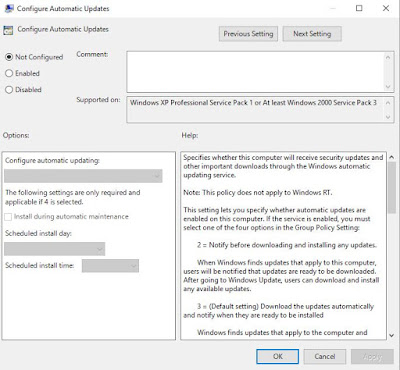
3. Now you select your desired value in the drop-down box as shown below, as I need it only to notify for the download & install, I've chosen "Notify for download and notify for install" value. Of course you can select "Allow local admin to choose setting" value depending on your environment.

4. Once all is done, just proceed to click "OK" button to close all windows and restart your computer for the policy to take effects. You can also use the following command line for it to take effects without restarting your computer.
5. Once the policy been updated, you will see something similar message displayed as shown below.

Happy Computing !!!
Sometimes when you just need full bandwidth of the internet and then this Windows Update kicks in to automatically starts downloading the updates without your notice then it will be wasting your time and on the internet bandwidth. As myself often use TeamViewer to remote in to server(s) or workstation(s), this poses a problems to me as the connection will be slow and lagging.
There is a workaround for this but this only applies to Win 10 Pro & above, lower version like Home Edition are not available :-
1. Run --> "gpedit.msc" --> Browse to --> HKLM\Administrative Templates\Windows Components\Windows Update. Look for "Configure Automatic Updates" policy.

2. The default value is "Not Configured", select --> "Enabled" option.

3. Now you select your desired value in the drop-down box as shown below, as I need it only to notify for the download & install, I've chosen "Notify for download and notify for install" value. Of course you can select "Allow local admin to choose setting" value depending on your environment.

4. Once all is done, just proceed to click "OK" button to close all windows and restart your computer for the policy to take effects. You can also use the following command line for it to take effects without restarting your computer.
C:\>gpupdate /force
|
5. Once the policy been updated, you will see something similar message displayed as shown below.

Happy Computing !!!
Subscribe to:
Posts (Atom)